树莓派开发
本章节包含以下部分,请按需阅读:
硬件连接
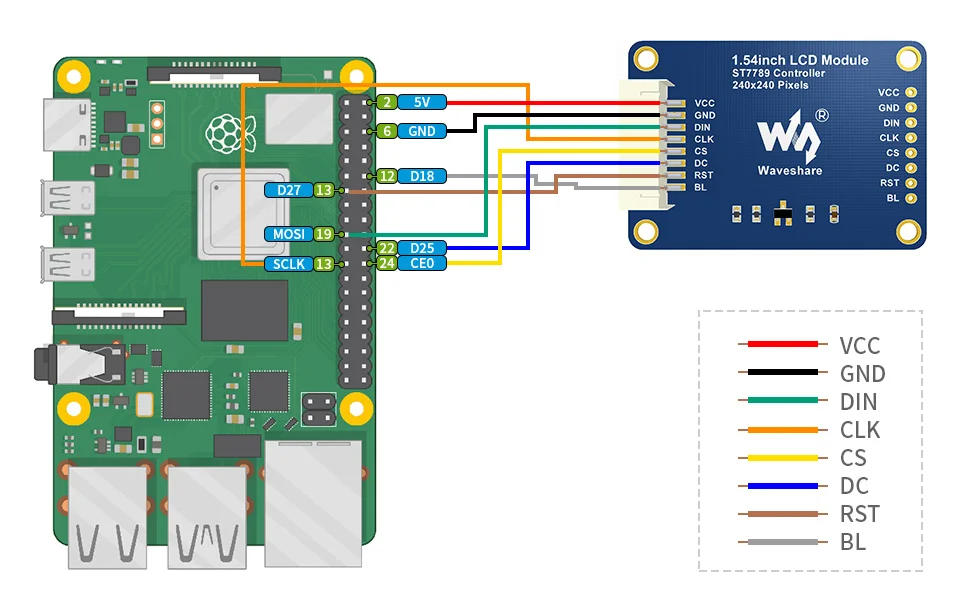
将 LCD 模块通过 8PIN 排线连接到树莓派,引脚对应关系如下:
| LCD | BCM2835 | Board |
|---|---|---|
| VCC | 5 V | 5 V |
| GND | GND | GND |
| DIN | MOSI | 19 |
| CLK | SCLK | 23 |
| CS | CE0 | 24 |
| DC | 25 | 22 |
| RST | 27 | 13 |
| BL | 18 | 12 |
开启 SPI 接口
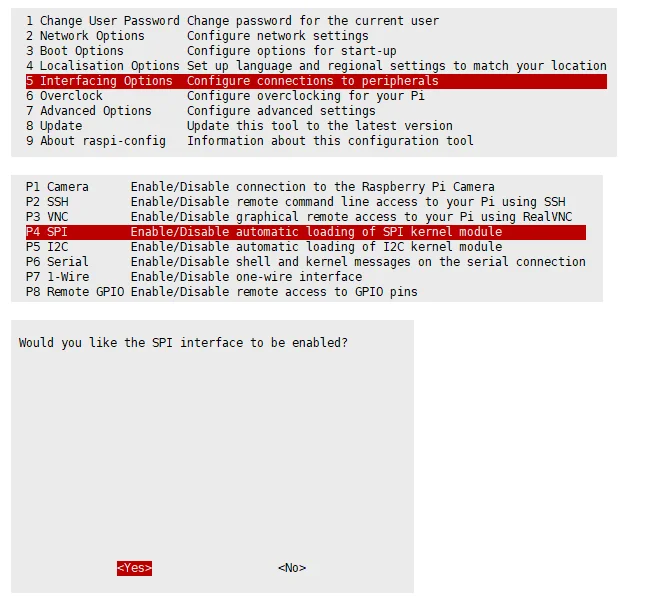
打开树莓派终端,运行以下命令进入配置页面:
sudo raspi-config
选择 Interfacing Options -> SPI -> Yes 开启 SPI 接口,然后重启树莓派:
sudo reboot
检查 SPI 是否被其他设备占用,可查看 /boot/config.txt 中的 SPI 配置。
Bookworm 系统说明
Bookworm 分支系统仅支持 lgpio 库,无法安装或使用 bcm2835 和 wiringPi 库。Python 库无需安装,可直接运行示例。
安装 C 库
- BCM2835
- wiringPi
- lgpio
sudo wget http://www.airspayce.com/mikem/bcm2835/bcm2835-1.71.tar.gz
sudo tar zxvf bcm2835-1.71.tar.gz
cd bcm2835-1.71/
sudo ./configure && sudo make && sudo make check && sudo make install
sudo apt-get install wiringpi
# 2019 年 5 月之后的系统可能需要升级:
wget https://project-downloads.drogon.net/wiringpi-latest.deb
sudo dpkg -i wiringpi-latest.deb
gpio -v
# 应显示版本 2.52,否则安装有误
Bullseye 分支系统使用以下命令:
sudo git clone https://github.com/WiringPi/WiringPi
cd WiringPi
sudo ./build
gpio -v
sudo su
wget https://github.com/joan2937/lg/archive/master.zip
unzip master.zip
cd lg-master
sudo make install
安装 Python 库
Bookworm 系统无需安装 Python 库,可直接运行示例。Bullseye 及更早系统执行以下命令安装:
sudo apt-get update
sudo apt-get install python3-pip
sudo apt-get install python3-pil
sudo apt-get install python3-numpy
sudo pip3 install spidev
下载示例程序
打开树莓派终端,运行以下命令:
sudo apt-get install unzip -y
sudo wget https://www.waveshare.net/w/upload/8/8d/LCD_Module_RPI_code.zip
sudo unzip ./LCD_Module_RPI_code.zip
cd LCD_Module_RPI_code/RaspberryPi/
运行示例
进入 RaspberryPi 目录后,可选择 C 或 Python 示例运行。
C 示例
cd c
sudo make clean
sudo make -j 8
sudo ./main 1.54
Python 示例
进入 python/examples 目录,可查看按尺寸排列的所有屏幕测试程序:
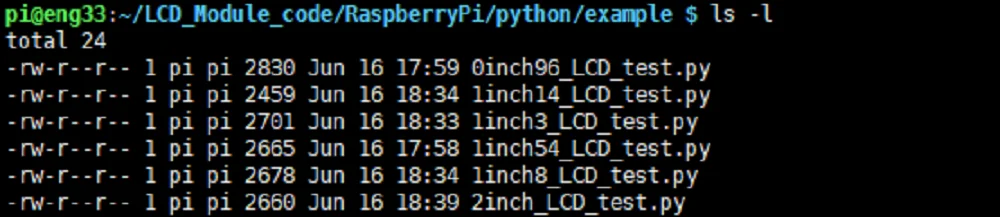
运行 1.54inch LCD Module 对应的测试程序:
cd python/examples
sudo python3 1inch54_LCD_test.py