搭配 树莓派 使用
请注意,以下示例通过树莓派4运行
硬件连接
- 15PIN 杜邦线接口
| LCD引脚 | 树莓派(BCM) |
|---|---|
| VCC | NC |
| 3V3 | 3V3 |
| GND | GND |
| MISO | 9 |
| MOSI | 10 |
| SCLK | 11 |
| SD_CS | NC |
| LCD_CS | 8 |
| LCD_DC | 25 |
| LCD_RST | 27 |
| LCD_BL | 18 |
| TP_SDA | 2 |
| TP_SCL | 3 |
| TP_INT | 4 |
| TP_RST | 17 |
开启SPI与I2C接口
-
打开树莓派终端,输入以下指令进入配置界面:
sudo raspi-config -
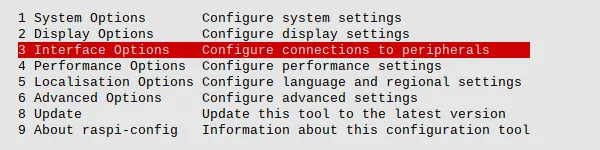
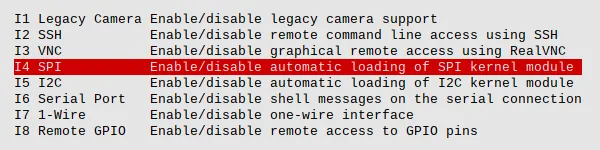
选择Interfacing Options -> SPI -> Yes 开启SPI接口

-
继续进入配置界面:
sudo raspi-config -
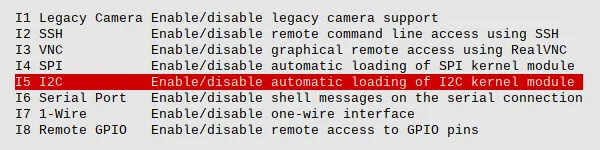
选择Interfacing Options -> I2C -> Yes 开启I2C接口

-
重启树莓派
sudo reboot -
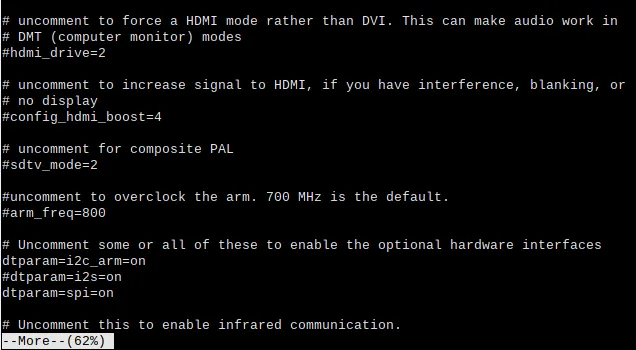
检查 /boot/config.txt,可以看到'dtparam=i2c_arm=on' 和 'dtparam=spi=on' 已被写入
more /boot/config.txt
-
为了确保 SPI 没有被占用,建议其他的驱动覆盖暂时先关闭。可以使用 ls /dev/spi* 来检查 SPI 占用情况,终端输出 /dev/spidev0.0 和 /dev/spidev0.1 表示 SPI 情况正常
ls /dev/spi*

Python 环境
安装库文件
-
安装库
sudo apt-get updatesudo apt-get install python3-pipsudo apt-get install python3-pilsudo apt-get install python3-numpysudo apt-get install python3-spidev
示例操作
-
下载示例程序
cdwget https://www.waveshare.net/w/upload/5/52/3.5inch_Capacitive_Touch_LCD_Demo_Pi.zip -
(可选,使用过解压指令可跳过这一步)安装解压环境
sudo apt-get install unzip -
进入文件位置,执行解压指令
unzip 3.5inch_Capacitive_Touch_LCD_Demo_Pi.zip -d ./3.5inch_Capacitive_Touch_LCD -
进入 Python 文件夹中
cd 3.5inch_Capacitive_Touch_LCD/Python -
运行示例程序即可在屏幕上显示3张图片,显示完即进入画板功能
python 3.5inch_Capacitive_Touch_LCD.py
C 环境
安装库文件
-
安装库
git clone https://github.com/WiringPi/WiringPicd WiringPi./buildgpio -v -
运行gpio -v会出现2.70版本,如果没有出现说明安装出错
-
下载示例文件
-
进入文件目录,运行程序
示例操作
-
下载示例程序
cdwget https://www.waveshare.net/w/upload/5/52/3.5inch_Capacitive_Touch_LCD_Demo_Pi.zip -
(可选,使用过解压指令可跳过这一步)安装解压环境
sudo apt-get install unzip -
进入文件位置,执行解压指令
unzip 3.5inch_Capacitive_Touch_LCD_Demo_Pi.zip -d ./3.5inch_Capacitive_Touch_LCD -
进入 C 文件夹中
cd 3.5inch_Capacitive_Touch_LCD/C -
清除编译文件,重新编译
sudo make cleansudo make -j -
编译成功,运行示例即可在屏幕上进行RGB刷屏,显示完即进入画板功能
sudo ./main